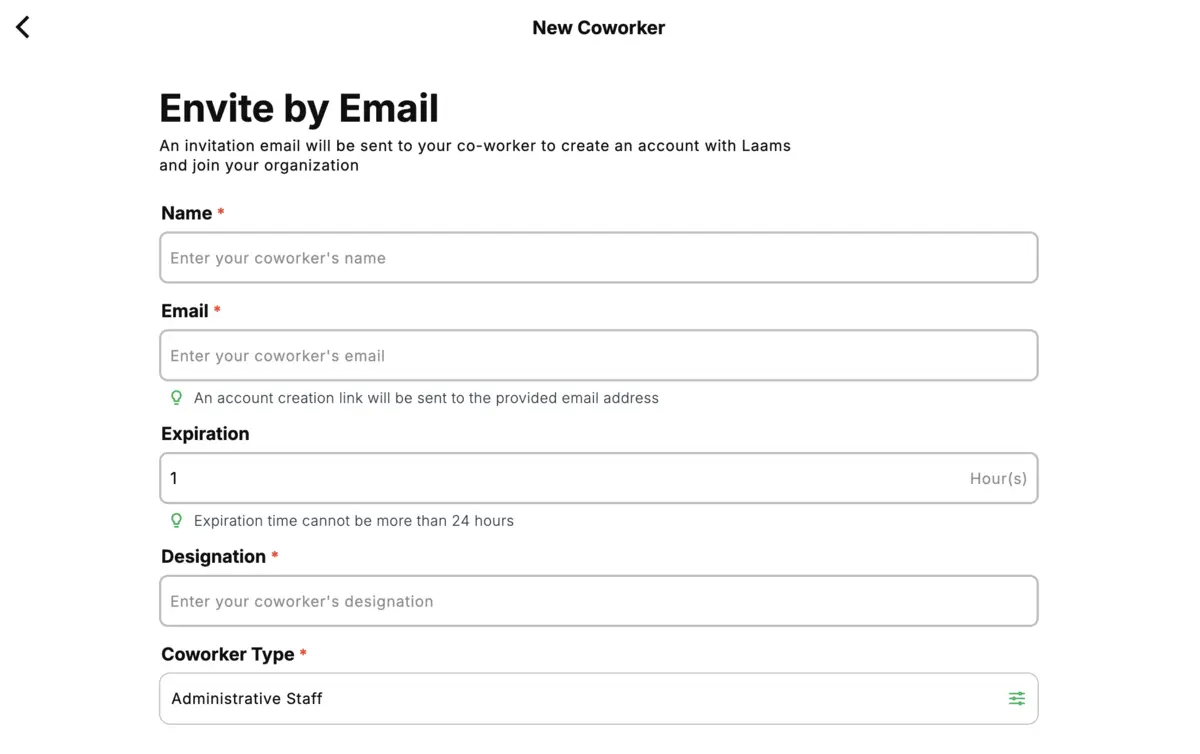
Getting your team up and running with Laams Workspace is quick, simple, and intuitive. In just three easy steps, you’ll be ready to collaborate, organize, and grow your business:
I. Create Your Laams Account: Start by signing up with Laams Workspace using your email or preferred login method. This is your personal gateway to managing all your business activities in one centralized hub.
II. Set Up Your Organization: Next, customize your workspace to fit your unique needs. Add your business details, define teams and roles, and configure the settings that matter most to you. This ensures your workspace is perfectly aligned with your operations.
III. Invite Your Team: Finally, bring your coworkers on board. Send invitations so everyone can join your workspace, collaborate effortlessly, and contribute to shared goals. Once your team is in, you’re ready to work smarter, not harder.
With Laams Workspace, onboarding is effortless, collaboration is seamless, and your business is set up for success from day one. Let’s get started!
I. CREATE YOUR LAAMS ACCOUNT
Before creating or signing in to your account you must have access to Laams Workspace app. Laams Workspace is available on almost all platforms. You can download Laams Workspace on any Apple Devices (Macbook, iPad, iPhone, Apple Vision Pro), any Android Device (Tablets and Mobiles), or use it on the web at https://workspace.laams.com.
Download Laams Workspace on your device by clicking on Download Now or manually researching for Laams Workspace on App Store and Google Play.
After downloading Laams Workspace on your device or opening it in a web browser, you will see a welcome screen with two sign-in options: Continue with Google and Continue with Apple.
By clicking either option, a Laams Account will be automatically created for you using your name, profile picture, and email from your Google or Apple account. If you already have a Laams account, you will be taken directly to your existing account.
Important: When selecting Continue with Apple, please choose to share your email. Using your actual email helps us communicate important updates, promotions, and also allows us to use it for any necessary legal purposes.
This means you can start using Laams Workspace immediately—without the need to manually enter your information or remember a password—making your onboarding fast, secure, and hassle-free.
II. SET UP YOUR ORGANIZATION
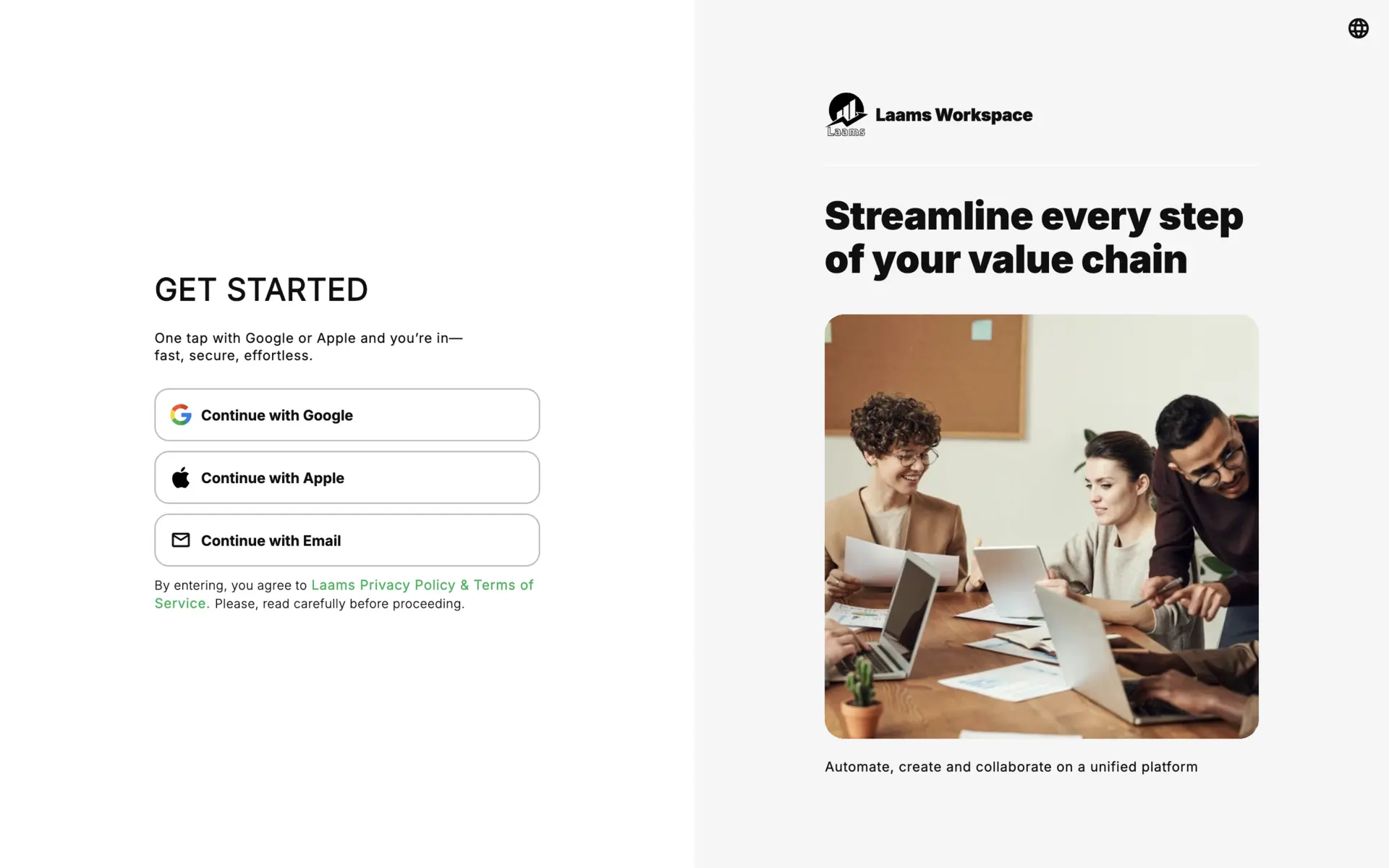
After signing in to Laams Workspace, new users will be prompted to set up their organization. This process is simple, guided, and designed to ensure your organization’s accounting, payroll, and management systems are properly configured from the start.
1. Enter Basic Organization Details
Provide the following essential information about your organization:
- Name: The official name of your organization.
- Description: A brief overview of your organization’s slogan, purpose, mission, or operations.
- Address: Enter the main physical location of your organization. It must be a valid, real-world address. As you type, location suggestions will appear—be sure to select the correct address from the list. This ensures your organization can be accurately located and helps avoid any issues with communication or services.
- Email: The main contact email for official communications.
- Phone: A primary phone number for your organization.
These details help identify your organization within Laams Workspace and are used for correspondence, invoicing, and reporting.
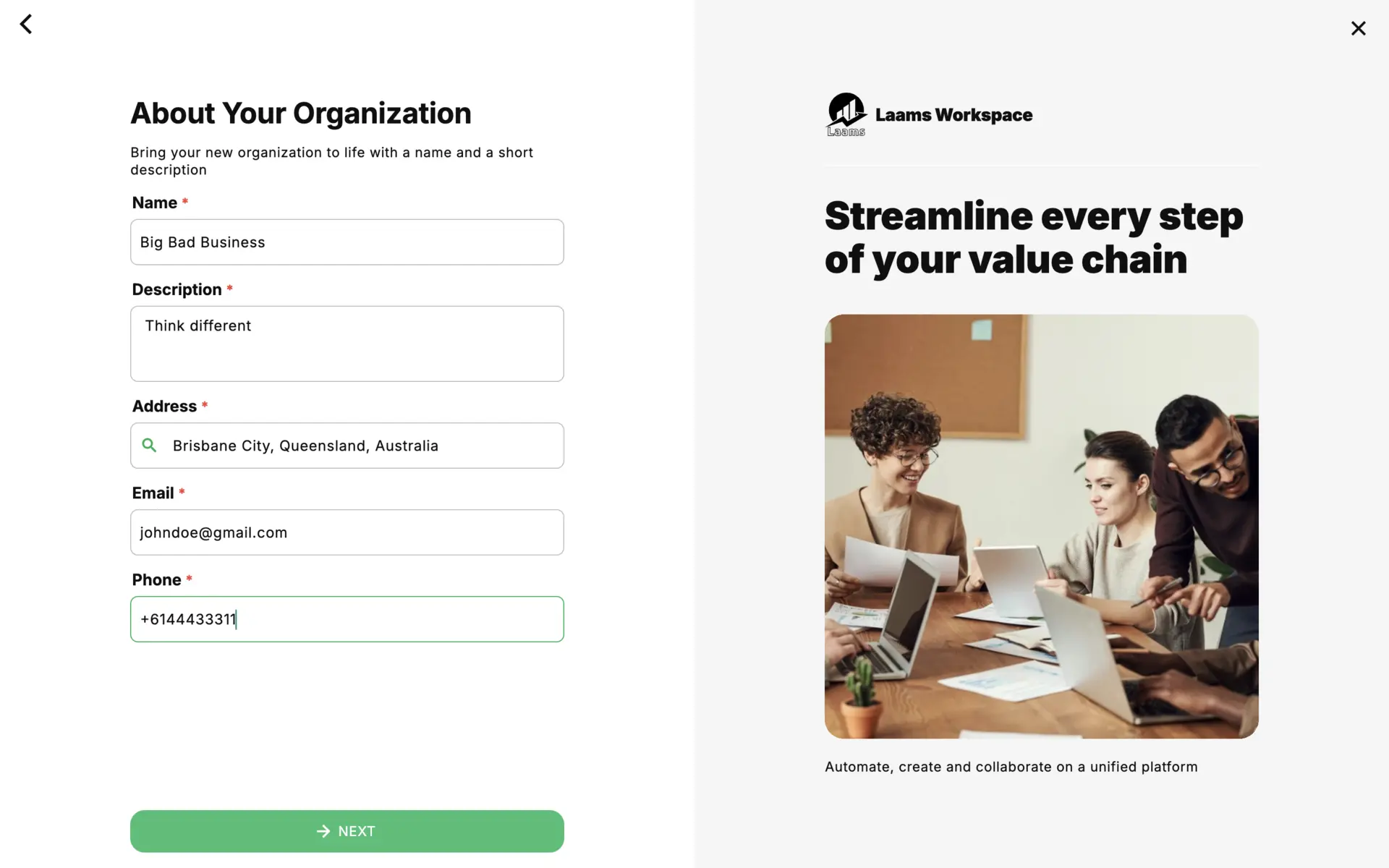
2. Choose Your Organization Type
Selecting the correct organization type is crucial for setting up your accounting system and chart of accounts. Available types include:
- Sole Proprietorship: A business owned and managed by a single individual. Simple structure with direct control.
- Partnership: A business owned by two or more people who share profits, losses, and responsibilities.
- Corporation: A legally separate entity from its owners, offering liability protection and the ability to issue shares.
- S-Corporation (S-Corp): A corporation that passes corporate income, losses, deductions, and credits to shareholders for tax purposes.
- C-Corporation (C-Corp): A corporation taxed separately from its owners, suitable for larger businesses seeking investment opportunities.
- Limited Liability Company (LLC): Combines the liability protection of a corporation with the tax benefits of a partnership.
- Nonprofit: An organization established for charitable, educational, or social purposes, eligible for tax-exempt status.
Choosing the right type helps Laams Workspace automatically set up your financial, tax reporting, and legal obligations align with your organization’s structure.
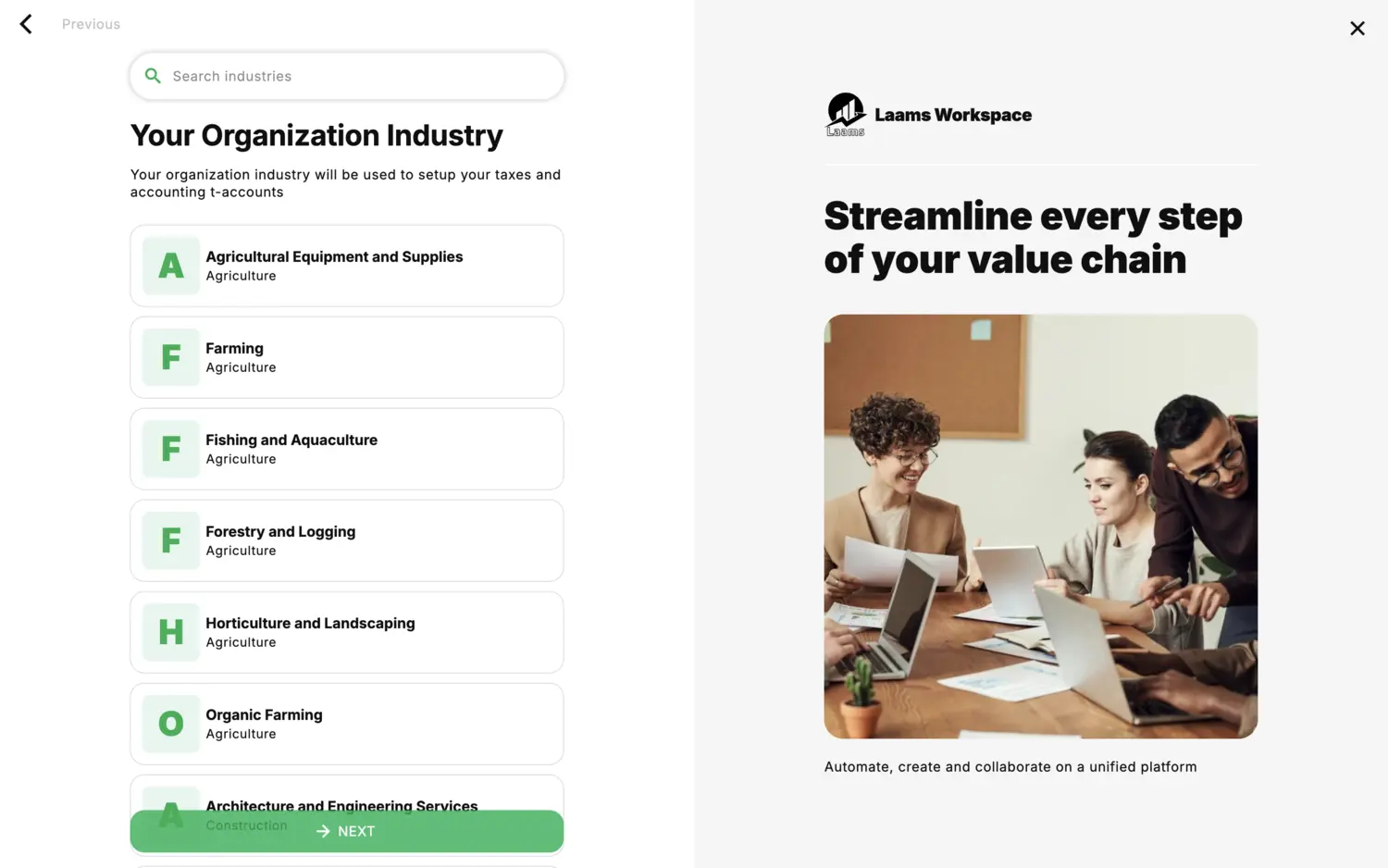
3. Select Your Organization Industry
Choose the industry that best represents your organization from the pre-generated list of industries and business categories provided. This list includes a wide range of sectors, such as Technology, Healthcare, Education, Retail, Manufacturing, Finance, Nonprofit, Hospitality, and many more, to help accurately categorize your organization. If your industry is not listed, select Other. This ensures that your organization is still properly set up for accounting, reporting, and operational workflows, even if it does not fall under a predefined category.
Industry selection helps Laams Workspace automatically configure default accounting categories and reporting templates suitable for your business type.
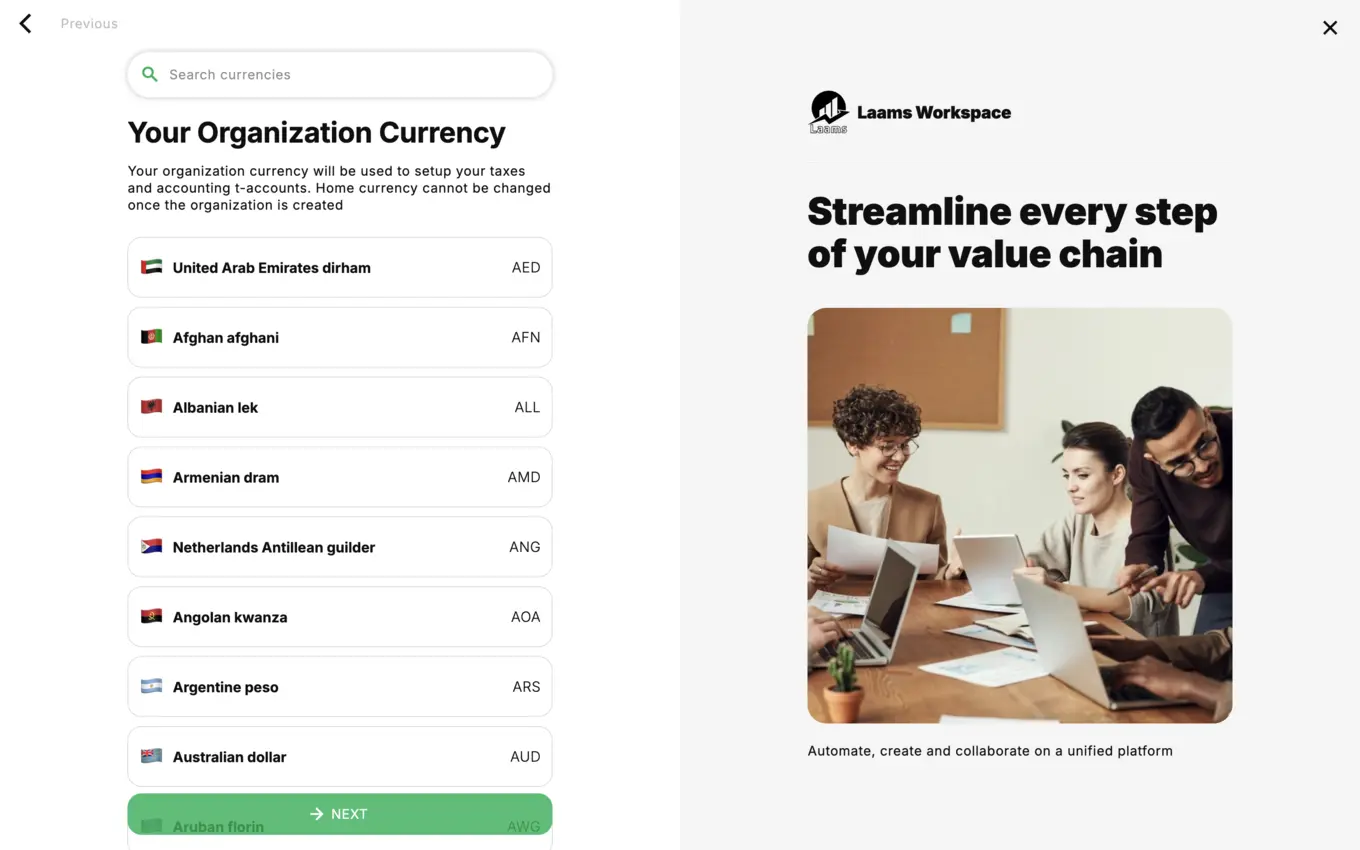
4. Choose Your Organization Currency
Select your organization’s default currency, which will be used for all your financial transactions, accounting records, invoicing, payroll, and reporting within Laams Workspace.
Important: Once your organization currency is selected, it cannot be changed, so choose the currency that your organization primarily operates in to ensure consistency and accuracy in all your financial processes.
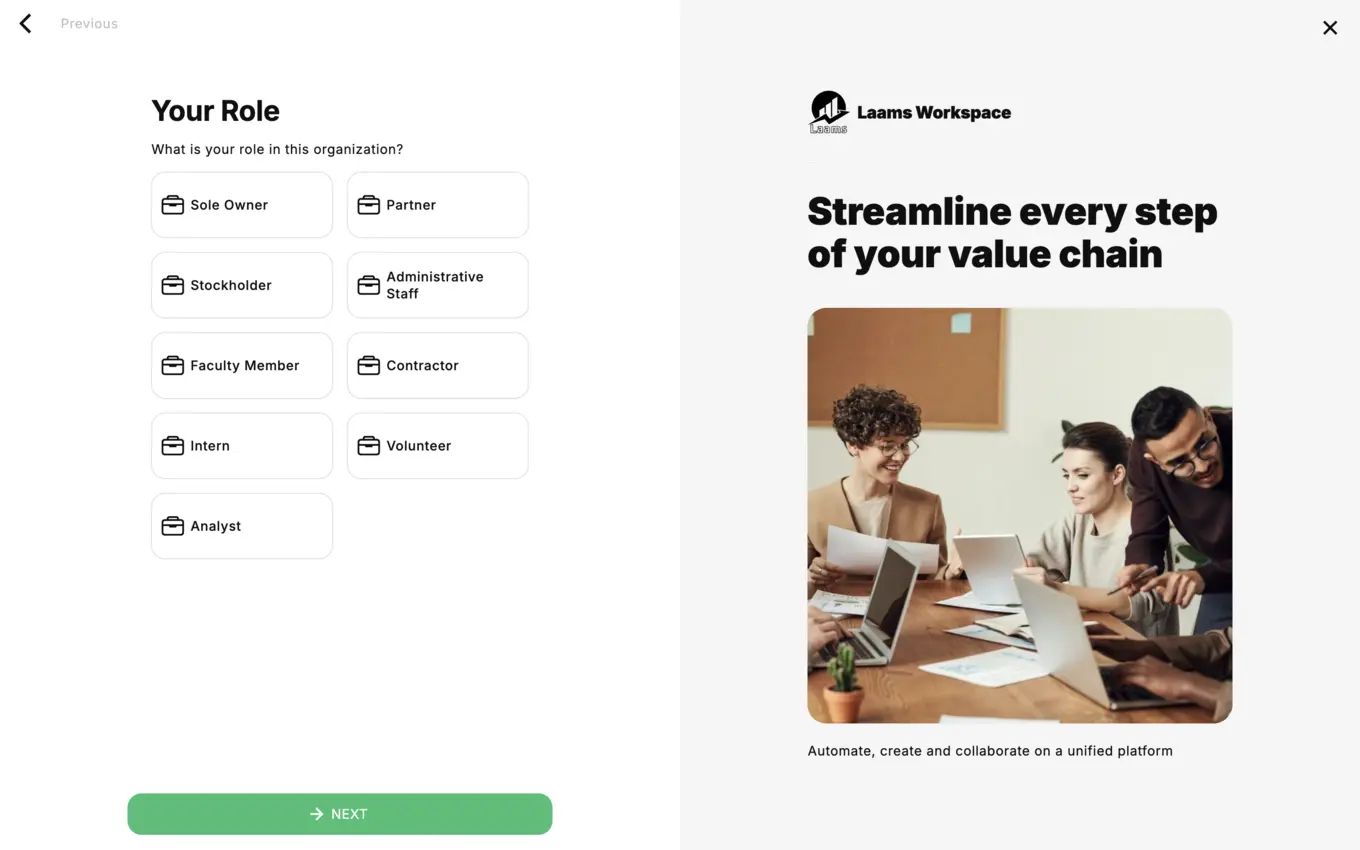
5. Select Your Role in the Organization
Identify your role to automatically configure your accounting, payroll, and human resource management profiles. Available roles include:
- Sole Owner: Full control of all operations, finances, and management decisions.
- Partner: Shared ownership with access to financial and operational dashboards.
- Stockholder: Investor with rights to view reports and receive dividends.
- Administrative Staff: Manages office operations, records, and general administration.
- Faculty Member: Contributes to teaching, research, or training within the organization.
- Contractor: Works on specific projects or tasks with limited access to organizational systems.
- Intern: Temporary trainee with restricted access to organizational resources.
- Volunteer: Provides services without financial compensation, with limited system access.
- Analyst: Responsible for reviewing and analyzing organizational data and generating reports.
Choosing your correct role helps Laams Workspace automatically set up your human resource, payroll and dividends related information.
Review and Create Your Organization
Carefully review all the information you have entered. Once confirmed, click CREATE to finalize your organization setup.
Congratulations! 🎉 your organization will now be fully configured within Laams Workspace
III. INVITE YOUR TEAM
You can easily invite your coworkers to join your organization in Laams Workspace. There are two ways to do this:
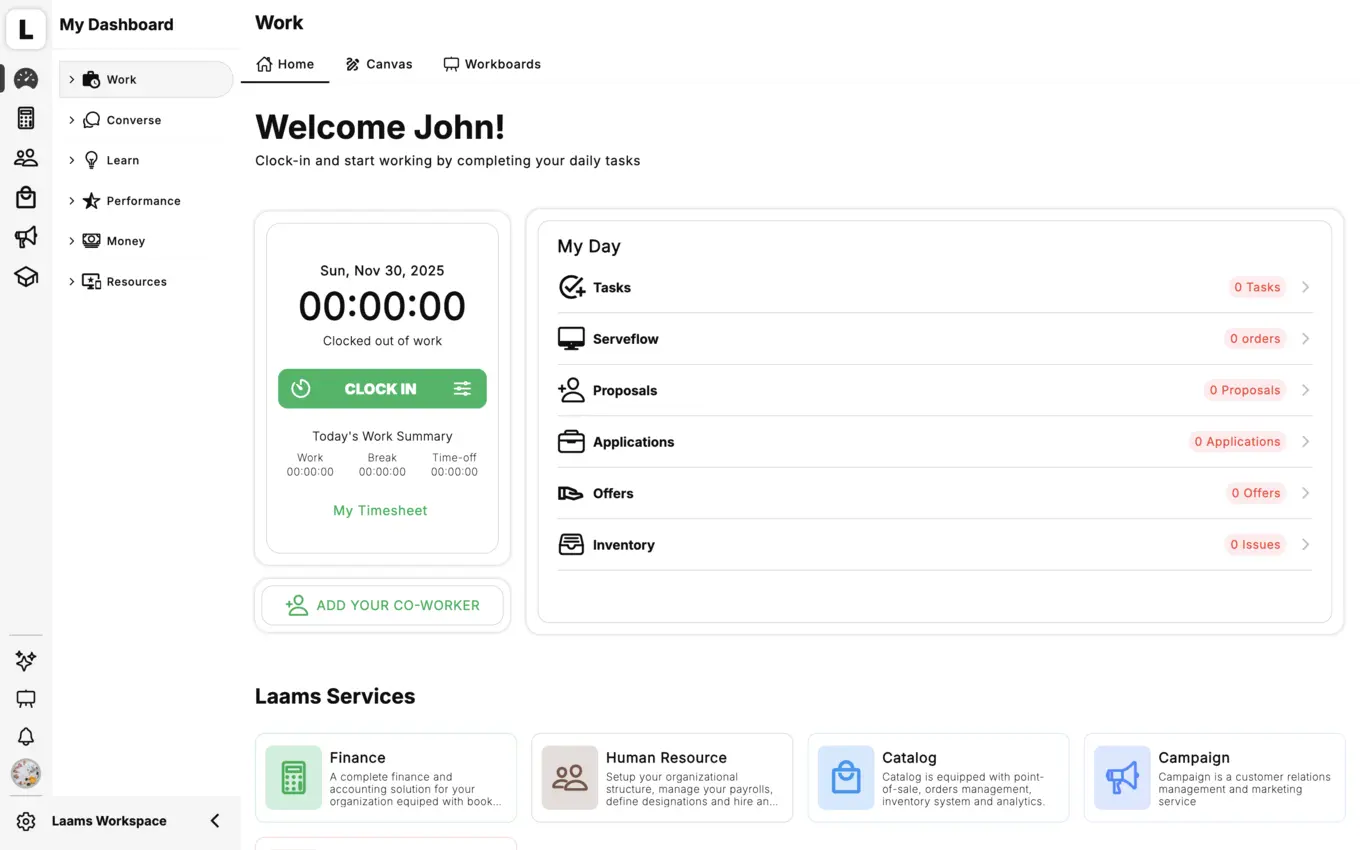
- Click on Add Your Coworker directly from your home screen.
- Navigate to Settings -> Organization -> Coworkers and click the + button to add a new coworker.
A. Adding a Coworker Who Already Has a Laams Account
- Enter your coworker’s email address in the search field.
- If your coworker already has a Laams Account, their profile information will automatically appear.
- You can then assign their role and permissions within your organization, and add them immediately.
This method ensures existing Laams users can be quickly integrated into your organization without needing to create a new account.
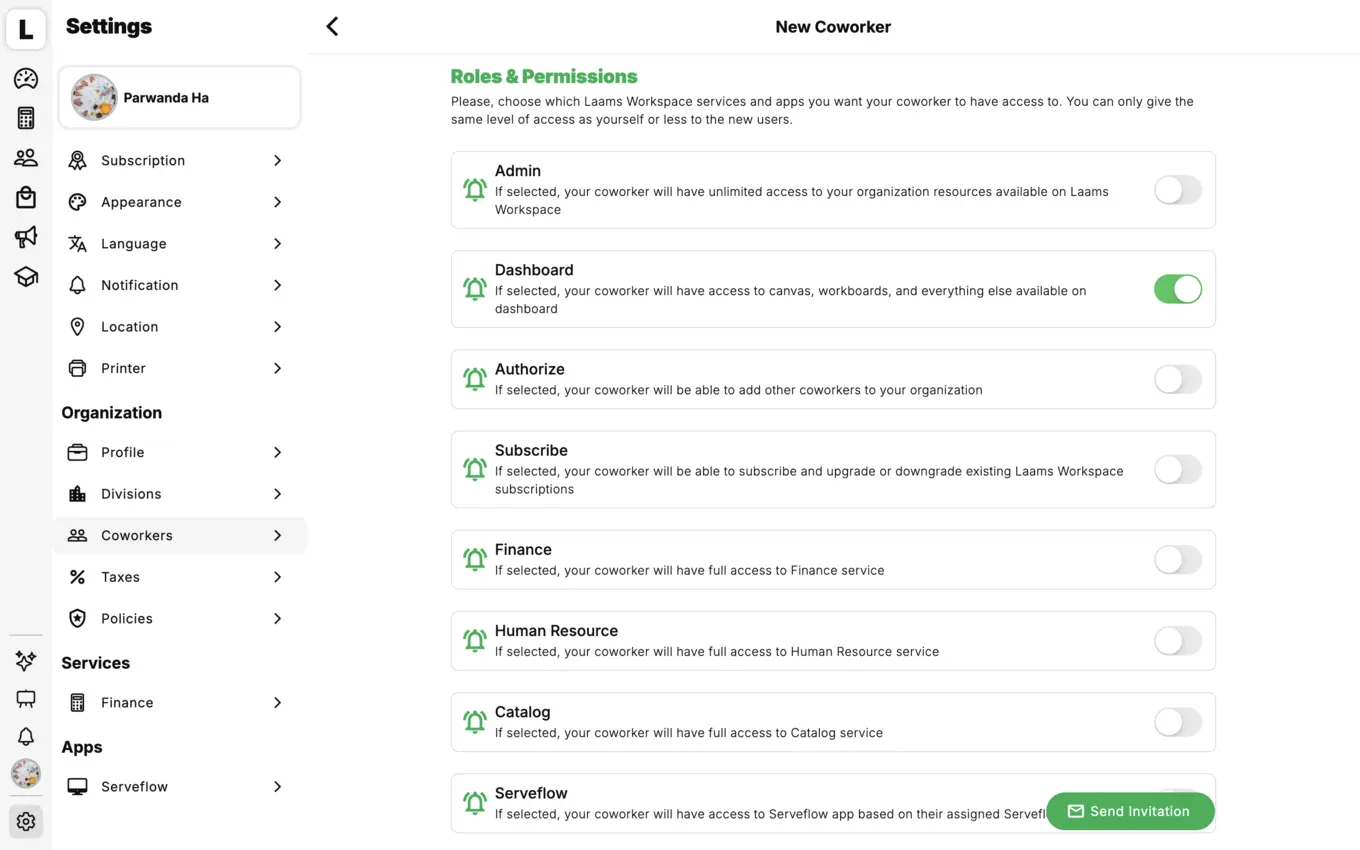
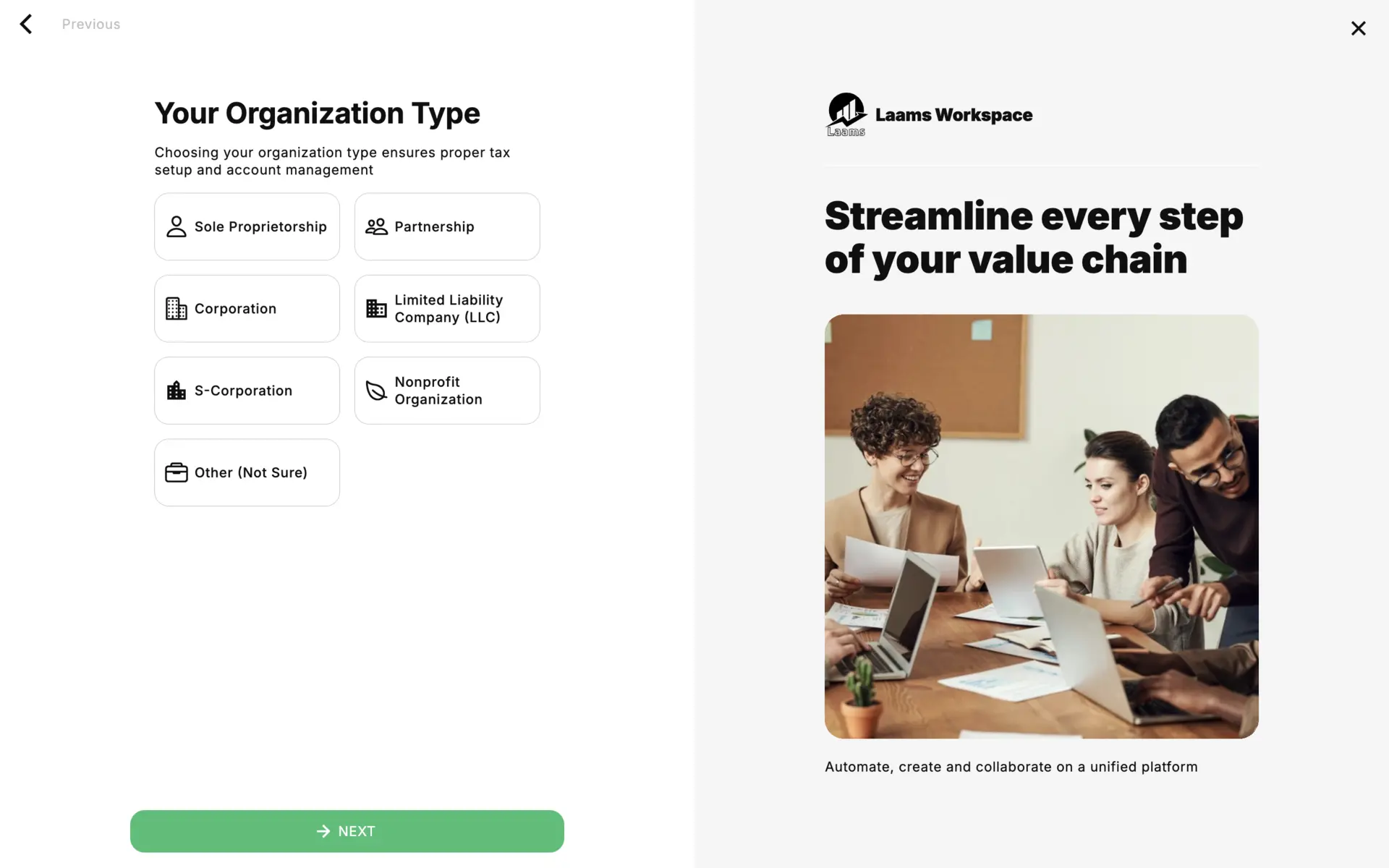
B. Adding a Coworker Who Does Not Have a Laams Account
- Search your coworker by email, if they don't have a Laams Account, Invite by Email option will appear.
- Enter your coworker’s name, email address, and any additional details.
- Assign their role and permissions within your organization.
- An email invitation will be sent to your coworker.
- Once they click the link in the invitation email, they can create a Laams Account, accept the invitation, and join your organization.
This process ensures that new users can be seamlessly onboarded, and that their roles and permissions are correctly configured from the start.